

Speak in your language. Send it in theirs.

Alien Keyboard types in Urdu, English and Bahasa Indonesia. Tap the mic, say your message, and the translation is typed into whatever field you’re writing in.

Download on the App Store Get it on Google Play

Available on iPhone, iPad and Android

100% SECURE See the details

Works in the apps you already use

  • WhatsApp
  • Instagram
  • Messenger
  • Telegram
  • Gmail
  • Facebook
  • TikTok
  • X
  • Discord
  • LINE
  • Signal
  • Zoom
  • Google Meet
  • Notion
  • YouTube

Not in password fields or apps that block other keyboards. Logos belong to their owners.

Turn your spoken words into text

Real-time voice & live translation Alien Keyboard

26+ Languages

Available on

Download on the App Store Get it on Google Play

iPhone and iPad: iOS 18 or later from version 2.8 · Android 7.0 or later

Two iPhones showing the Alien Keyboard app: the Privacy and Data settings with the keyboard open, and the setup screen with its three steps ticked off.

Live demo

See it in action.

Tap the mic, say your message, and the translation is typed into whatever field you’re writing in.

  1. Tap the mic and speakIn Urdu, Bahasa, English or another of your languages. The mic turns red while it listens.
  2. Pause, and it translatesThe mic turns green while it translates.
  3. The translation is typed in. Send.In the other person’s language, right in the chat’s message box.

Translation needs an internet connection. On iPhone, the keyboard mic arrives in version 2.8 and needs Full Access.

You say, in Urduکل شام کو ملتے ہیں Typed in Bahasa IndonesiaSampai jumpa besok sore

Why it helps

No more copy, switch, paste, switch back.

Replying in another language usually means leaving the chat. With Alien Keyboard, the translation happens where you’re already typing.

The usual way · Step 1 of 7Write it in your language

The usual way

  1. Write it in your language
  2. Copy it
  3. Open a translator app
  4. Paste it in
  5. Copy the translation
  6. Switch back to the chat
  7. Paste, then send

Seven steps across two apps.

With Alien Keyboard

  1. Tap the mic and speak
  2. The translation is typed in. Send.

Two steps, right from the keyboard.

Translation needs an internet connection. On iPhone, the keyboard mic arrives in version 2.8 and needs Full Access; the mic opens the Alien Keyboard app for a moment the first time, and again after it has gone unused for 10 minutes.

Bahasa Indonesia to English

Say it in Bahasa. Send it in English.

Set the language pill to ID to EN, tap the mic and speak. A few everyday lines, the way they come out:

  • You saySaya sudah di jalan, sepuluh menit lagi sampai.

    Typed in EnglishI’m on my way, I’ll be there in ten minutes.

  • You sayRapatnya dipindah ke hari Kamis jam sepuluh.

    Typed in EnglishThe meeting has been moved to Thursday at ten.

  • You sayBisa kirim lokasinya sekarang?

    Typed in EnglishCan you send me the location now?

  • You sayHarganya berapa kalau beli dua?

    Typed in EnglishHow much is it if I buy two?

  • You sayMaaf, saya telat. Tadi macet sekali.

    Typed in EnglishSorry I’m late. The traffic was terrible.

  • You sayTerima kasih banyak atas bantuannya.

    Typed in EnglishThank you so much for your help.

Examples of everyday use. Translation needs an internet connection; the wording comes from the translation service and can differ.

Features

Built into the keyboard you type with.

Voice, translation, Urdu keys and an encrypted clipboard, right where you type.

Voice typing with translation

Talk in one language. Type in another.

Choose the language you speak and the language to type it as. Tap the mic and talk. When you pause, the translation is typed into the field you’re in. You decide how long that pause should be.

  • Separate “I speak” and “Type it as” languages
  • Adjustable “Auto-translate after silence” delay
  • On iPhone, it can also translate what you say into Apple’s own dictation mic
  • On iPhone, the app has its own “Speak and translate” and “Conversation” screens, which put the result on the clipboard

Translation needs an internet connection. On Android, speech goes through your phone’s Google speech service. On iPhone, the keyboard mic arrives in version 2.8. The mic and translation both need Full Access, and Urdu voice uses an optional speech model you download once (see setup).

Live two-person translator

A two-way conversation, right above the keys.

Talking with someone face to face? Open the live panel. Each of you taps your own side and speaks. Every line shows what was said and its translation, with buttons to play it aloud or copy it.

  • Two language pills with the mic between them
  • Its own language pair, separate from your typing pair
  • Keeps the last 10 exchanges
  • On Android now, and on iPhone from version 2.8

It works in turns, one speaker at a time, and needs an internet connection. On iPhone it also needs Full Access, and read-aloud plays through the app. Live turns stay in the panel and aren’t typed into the chat.

Typing

Real Urdu keys, and suggestions that know Bahasa.

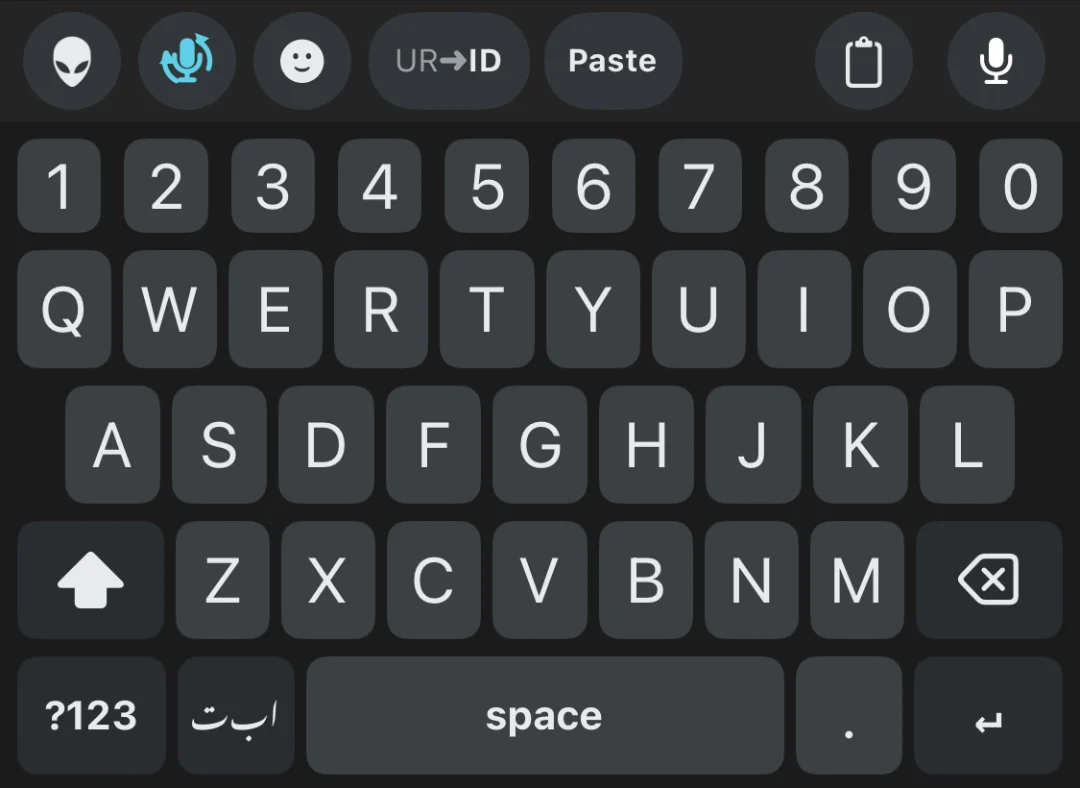
Switch between a Latin QWERTY layout for English and Bahasa Indonesia and a full Urdu-script layout. Each has shift, two symbol pages and a number pad, and the Urdu pages offer Eastern digits.

  • Word suggestions from 46,870 English, 30,000 Bahasa and 30,000 Urdu words
  • Bahasa gets its own word list, so it isn’t “corrected” into English
  • Learns new words, like names and jargon
  • Autocorrect that one backspace undoes, automatic capitals, double-tap space for a full stop, and a pop-up letter on each key
  • Slide along the space bar to move the cursor; swipe from backspace to delete a word

Clipboard

Your last 25 copies, kept close and encrypted.

The clipboard panel keeps the last 25 things you copied, up to 2,000 characters each. Tap a clip to paste it, or hold it to translate. Pin the ones you reuse and they’re never cleared.

  • On iPhone, it keeps only what you copy. On Android, the translation of a clip you hold is added to the list too.
  • Encrypted on your phone
  • Pin with a star on Android, or swipe right on iPhone
  • Turn it off any time with “Keep recent copies for the clipboard panel”

On iPhone, the clipboard needs Full Access and only picks up a copy when you press Paste or open the clipboard panel.

Paste and translate

Got a message you can’t read? Paste it.

In the iPhone live panel, the “Paste text to translate” key works out which language the text is in and adds the translation to the conversation. It recognises Roman Urdu too. On iPhone, the Paste key arrives in version 2.8 and needs Full Access. On Android, hold any clip in the clipboard to translate it.

  • On iPhone, the language is detected on your phone, with Apple’s NaturalLanguage framework plus word lists for Roman Urdu and Bahasa/Malay
  • If it can’t tell, Google’s automatic detection takes over
  • On Android, clips are translated with Google’s automatic detection

Sounds, vibration, themes and size

Twenty soft key sounds, and a keyboard that fits.

Choose from 20 gentle sound packs, from Cotton and Felt piano to Rain drop and Zen bowl. Add a vibration on each key press, pick a theme, and size the keyboard to your hands.

  • The same 20 packs on Android and iPhone, with a volume slider on iPhone
  • Auto, Light and Dark themes
  • Keyboard size from 75% to 140% on iPhone; a key-scale setting on Android

On iPhone, custom key sounds need Full Access.

And the small things that add up

  • Read aloud

    Hear any line of a live conversation read out. Android uses your phone’s text-to-speech. iPhone uses its own voices, and sends the text to Google to be read out only for languages with no installed voice.

  • Text shortcuts

    Type “omw” and get “on my way”. Save up to 100 shortcuts, stored encrypted.

  • Emoji

    Nine tabs, including your recents, in the same order on Android and iPhone.

  • Learns your words

    Names and jargon get remembered. Android keeps up to 400; iPhone offers a word after seeing it twice. Clear them with “Forget learned words”.

  • Quick gestures

    Slide on the space bar to move the cursor. Swipe from backspace to delete a whole word.

  • Help built in

    The app has “Test translation” and “Why is voice not working?” for when something seems off. On iPhone, setup ticks off each step.

Languages

26 languages on Android. 29 on iPhone.

Type on Latin or Urdu keys, and translate to and from many more languages.

Translate to and from

  • English (has its own keys)
  • Urdu (has its own keys; heard on the phone by the iPhone voice model)
  • Bahasa Indonesia (has its own keys)
  • Malay
  • Arabic
  • Bengali (heard on the phone by the iPhone voice model)
  • Chinese
  • Dutch
  • Filipino
  • French
  • German
  • Hindi
  • Italian
  • Japanese
  • Korean
  • Nepali (heard on the phone by the iPhone voice model)
  • Pashto (heard on the phone by the iPhone voice model)
  • Persian (heard on the phone by the iPhone voice model)
  • Portuguese
  • Punjabi (heard on the phone by the iPhone voice model)
  • Russian
  • Spanish
  • Tamil (heard on the phone by the iPhone voice model)
  • Thai
  • Turkish
  • Vietnamese

PolishUkrainianiPhone also has these two, and splits Chinese into Simplified and Traditional.

On the keys

Two scripts, with word suggestions for all three languages.

Latin QWERTY
English, Bahasa Indonesia
Urdu script
Urdu, with Eastern digits ۱۲۳

What you can speak

Voice doesn’t have one fixed list. It depends on your phone.

  • Android: whatever your phone’s Google speech service supports. The app asks it which languages it can hear.
  • iPhone: whatever Apple’s recogniser supports on your device, plus the optional voice model for Urdu, Punjabi, Pashto, Persian, Bengali, Nepali and Tamil (and Indonesian and Malay where the iPhone can’t hear them). The app lists the languages your iPhone can’t hear.

Tried on a real iPhone so far: Urdu, Bahasa and English voice, and Urdu to Bahasa both typed and in the live panel.

Getting started

Three steps to set up. Urdu voice on iPhone takes one more.

Here’s what setup looks like on each platform, including the parts that take a moment.

Two iPhones showing the Alien Keyboard app in dark mode. Left: the Privacy and Data settings with Alien Keyboard open below, its toolbar showing the UR to EN language pill and the mic. Right: the setup screen with the three buttons Enable Keyboard, Select Keyboard and Allow Microphone, ticked off as Keyboard is enabled and Microphone allowed.
The app on iPhone: privacy settings with the keyboard open, and the three setup steps ticked off.

iPhone and iPad

iOS 18 or later (from version 2.8)

  1. Enable KeyboardInstall Alien Keyboard and open it. Step 1 takes you to Settings: tap Keyboards, switch Alien Keyboard on, then turn on Allow Full Access. The setup screen ticks off each step as you go.
  2. Select KeyboardHold the globe key on the keyboard and pick Alien Keyboard.
  3. Allow MicrophoneSo it can hear you. The first time you tap the mic, the app opens for a moment to start voice typing. It does that again whenever the mic has gone unused for 10 minutes.

Good to know

  • The keyboard mic, the live translator and the Paste key arrive on iPhone in version 2.8.
  • After the first tap, the mic stays ready until it’s gone unused for 10 minutes; the next tap after that opens the app again. The orange dot shows while it’s on, and the app has a “Turn voice typing off” button.
  • Urdu voice uses an optional speech model of about 650 MB that runs on your phone. You download it once. After every install or update, its first load takes a few minutes (about 4 on the iPhone 13 mini we tested, and possibly longer on older iPhones), and the screen needs to stay open. If your iPhone is short of memory (we’ve seen it on a 4 GB model), iOS can close the app during that first load, so it may take more than one try.
  • Until the model is ready, Urdu is heard through Apple’s Hindi recogniser and comes out rough. That needs Hindi added under Dictation Languages.
Download on the App Store

Android

Android 7.0 or later

  1. Enable KeyboardInstall Alien Keyboard, open it and turn it on as a keyboard in your phone’s settings.
  2. Select KeyboardPick Alien Keyboard as your keyboard.
  3. Allow MicrophoneLet it use the microphone, then choose your languages and turn translation on when you’re ready. Your text isn’t sent to Google for translation until you do; voice always goes through your phone’s Google speech service.

Good to know

  • Voice goes through your phone’s own Google speech service, so the languages you can speak depend on it.
  • If something seems off, the app has “Test translation” and “Why is voice not working?”.
Get it on Google Play

Privacy

Plain words about where your words go.

No account to make, no analytics, and no server of ours. Here is exactly what happens to what you type and say.

  • Your clipboard, learned words and shortcuts are encrypted on your phone (AES-GCM)
  • No account, no analytics, no servers of ours
  • Translation travels over a secure HTTPS connection
  • Urdu voice is turned into text on your iPhone, with the optional voice model
  • Keys stored in the Keychain and Android Keystore, left out of backups
  • 0 accounts
  • 0 analytics
  • 0 servers of ours

Sent to Google, when translation is on

  • Once you turn translation on, the text being translated goes to Google over HTTPS.
  • On Android, a clipboard clip is sent only when you hold it to translate.
  • On iPhone with iOS 26 or later, a pair whose Apple translation model is installed is translated on the phone. Everything else goes to Google. That always includes Urdu, Pashto, Persian, Punjabi, Bengali, Nepali, Tamil, Malay, Filipino and Roman Urdu. On iOS 18 to 25, every pair goes online.
  • On iPhone, so the translation is ready when you stop, the words heard so far are sent at each pause in your speech. That means text can be sent before you’ve finished speaking.

Your voice

  • iPhone: audio is never sent to the translation service. Once you’ve downloaded the optional voice model, Urdu and the other voice-model languages are turned into text on the phone. Before that, and for other languages, Apple’s own recogniser is used: it’s kept on the device where Apple supports that; otherwise Apple may process the audio on its servers. Between turns, the open mic’s audio goes nowhere.
  • Android: speech is handled by your phone’s Google speech service, and the keyboard receives the text.

Kept on your phone, encrypted

  • Your clipboard, pinned clips, learned words and shortcuts are encrypted on your phone with AES-GCM (on iPhone from version 2.8). On iPhone, voice and live text that’s waiting to be used is too.
  • On Android, the key is held by the Android Keystore and this data is left out of backups. On iPhone, the key is kept in the Keychain for this device only, so it isn’t in backups.
  • If encryption ever fails, nothing is written in plain text.
  • Settings aren’t encrypted on either phone. On iPhone, recent emoji and a diagnostic log aren’t either; the log holds counts and timings, never words.

Other connections

  • Update check: both apps read a small version file from GitHub Pages to see if there’s a new version. On Android this happens about every 12 hours, even when translation is off, and none of your content is sent.
  • iPhone voice model: downloaded once from Hugging Face, only when you ask for it.
  • Read aloud: on iPhone, text in a language with no installed voice is sent to Google to be read out.
  • Feedback: it’s an email, and nothing is sent until you press send.

This website has no cookies, analytics or trackers either.

FAQ

Questions, answered straight.

Does Alien Keyboard work without internet?

Not for translation. Translating needs a connection for most language pairs, and Urdu always does. On iPhone with iOS 26 or later, you can download Apple’s translation for the pairs Apple supports, and those pairs are then translated on the phone.

If you use a VPN that blocks Google, translation can’t get through.

Can I type in all 26 languages?

No. The keys come in two scripts: Latin QWERTY for English and Bahasa Indonesia, and Urdu script for Urdu, with word suggestions for those three. The 26 languages (29 on iPhone) are the ones you can translate to and from.

Why does it need Full Access on iPhone?

On iPhone, Alien Keyboard needs Full Access for its microphone (the voice comes from the Alien Keyboard app, and Full Access is what lets the keyboard reach it), to translate, to keep your clipboard, to paste into the live translator and to play custom key sounds.

Why does the app open when I tap the mic on iPhone?

iOS doesn’t give keyboards a microphone, so the Alien Keyboard app holds one for it. The first tap opens the app for a moment to start that microphone session. After that you speak straight from the keyboard until the session has gone unused for 10 minutes; then the next tap opens the app again. iOS shows its orange dot while it’s on, and the app has a “Turn voice typing off” button.

Between turns, the open mic’s audio goes nowhere.

Why does Urdu voice need a download on iPhone?

Urdu speech is turned into text by an optional speech model that runs on your iPhone: OpenAI’s Whisper large-v3-turbo, packaged by Argmax. It’s about 650 MB, and it’s downloaded once from Hugging Face when you ask for it.

After every install or update, the model’s first load takes a few minutes (about 4 on the iPhone 13 mini we tested, and possibly longer on older iPhones), and the screen needs to stay open. If your iPhone is short of memory (we’ve seen it on a 4 GB model), iOS can close the app during that first load, so it may take more than one try.

Until it’s ready, Urdu is heard through Apple’s Hindi recogniser (add Hindi under Dictation Languages), which comes out rough. The same model also hears Punjabi, Pashto, Persian, Bengali, Nepali and Tamil.

Is voice typing the same as the live translator?

No. Voice typing puts the translation into the field you’re typing in, using your typing languages. The live translator is for talking with someone face to face: it has its own language pair, shows each line with its translation, and keeps the last 10 exchanges with play and copy buttons.

On both Android and iPhone, live turns stay in the panel and aren’t typed into the chat.

Which devices does it work on?

iPhone and iPad with iOS 18 or later (from version 2.8), and Android phones with Android 7.0 or later. There’s no Mac or desktop version available.

Something isn’t working. Where do I get help?

In the app, try “Test translation” and “Why is voice not working?”. You can also email us at support@alienkeyboard.com.

Your next message, in their language.

Alien Keyboard for iPhone, iPad and Android.

Download on the App Store Get it on Google Play

iPhone and iPad: iOS 18 or later from version 2.8 · Android 7.0 or later